
The Background section in the right sidebar of /pokemon-trainer-card-maker controls the card backdrop. Four tabs select the backdrop type: Preset, Custom, Solid, and Image.
Step 1

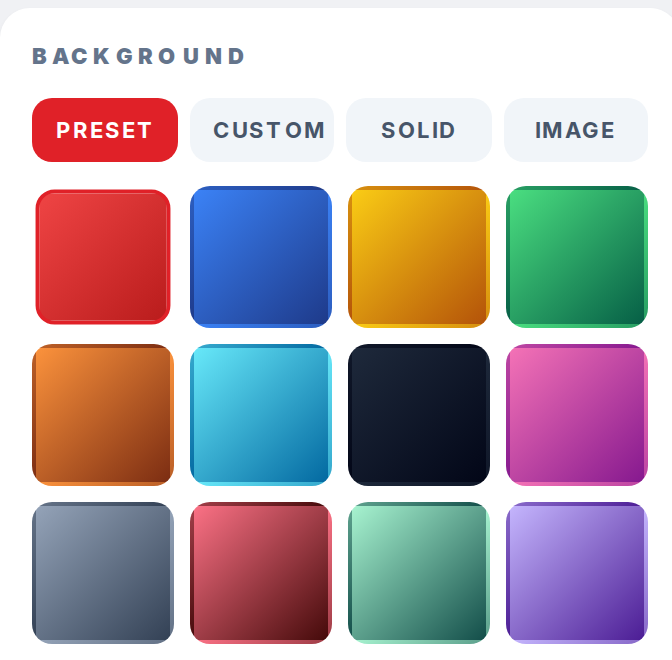
Click the Preset tab to pick one of the 12 built-in gradients. Each swatch applies when clicked.
Step 2
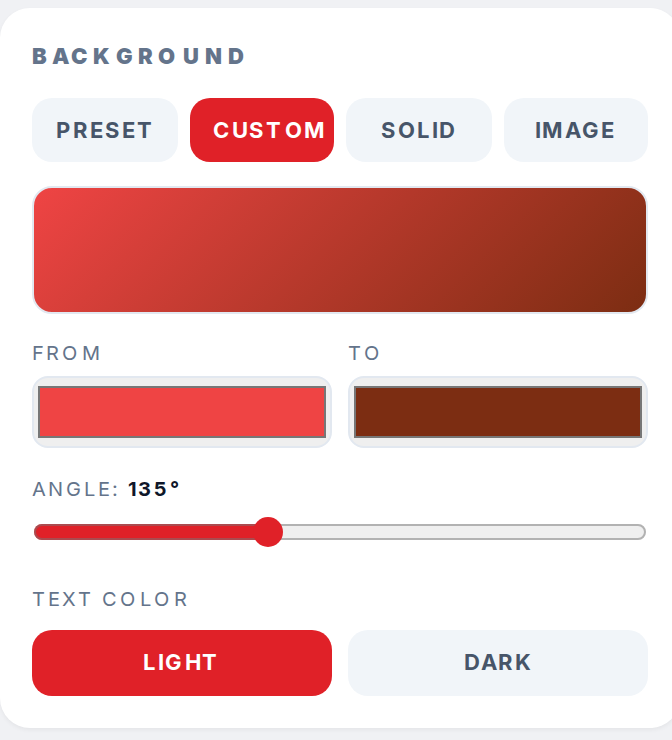
Click the Custom tab to mix a gradient. Set From and To colors and the Angle slider, and the preview bar at the top of the panel reflects the gradient in real time.
Step 3
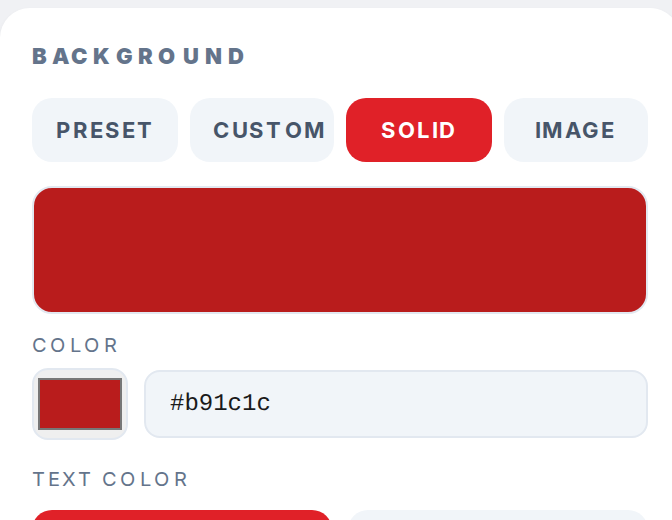
Click the Solid tab for a single color. The color picker and a hex text field both edit the same value.
Step 4
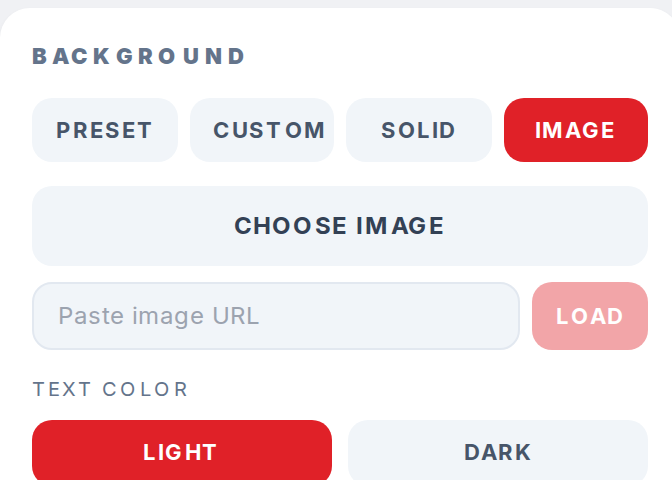
Click the Image tab to upload a file or paste a direct image URL. Click Load to apply a pasted URL, and click Remove under the field to clear it.
Step 5
Switch the Text color row between Light and Dark so the card title, labels, and values keep enough contrast against the backdrop.