
After Stripe checkout the /ad-free/success page renders a QR code under the caption Scan on your phone. Scanning it from a phone camera opens /ad-free/restore?key=PKPD-XXXX-XXXX-XXXX on that phone and auto-submits the key, which is why activation takes one tap and no typing. The key in the QR is the same license key shown on the success page and emailed by Stripe.
Step 1
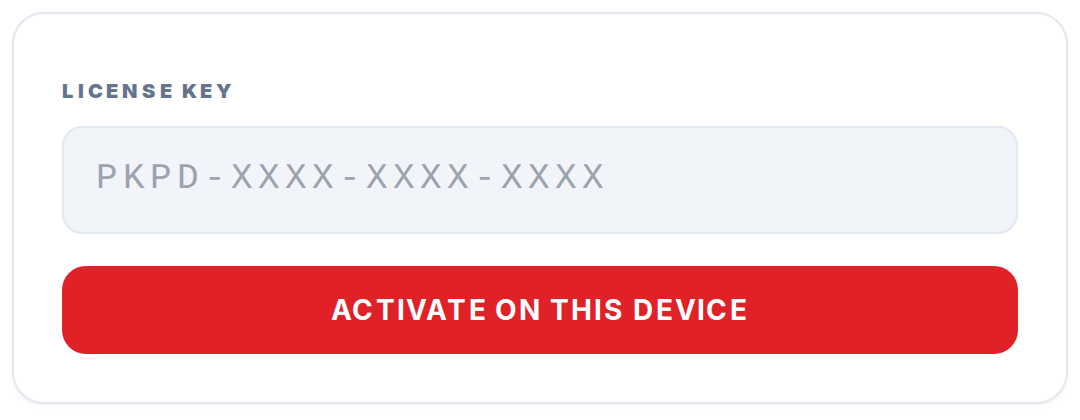
Complete Stripe checkout from your computer. You land on /ad-free/success and the page renders your license key plus a 160-pixel QR code in the right column of the card.
Step 2
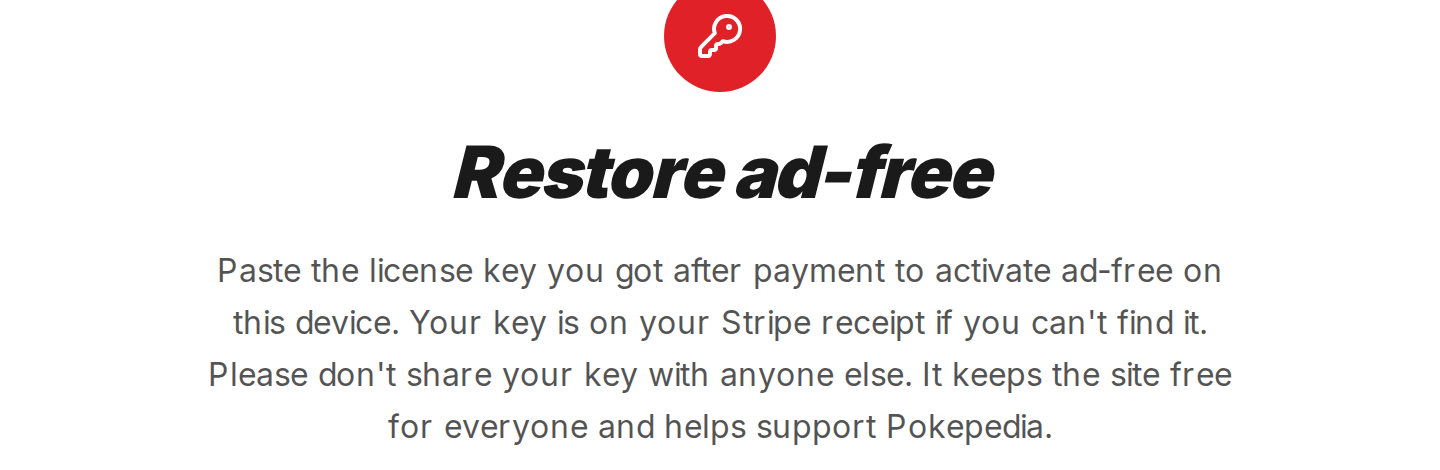
Open the camera on your phone and point it at the QR. The phone will offer to open /ad-free/restore with the key already in the URL.
Step 3

Tap the notification. The Restore page on your phone loads, sees the key, and calls /api/ad-free/restore automatically.
Step 4

On success the phone redirects to /ad-free/success and the You are ad-free message confirms ad-free is now active in that browser.
Step 5

If the phone cannot scan the QR, the link underneath the code reads /ad-free/restore. Open that path manually on the phone and paste the key from your Stripe email.